

How to transfer files from and to VPS
Table of Contents
- SSHFS (only for Linux local computers): mount a remote folder in your computer
- SFTP (Filezilla)
- SFTP (command-line)
- SCP
- rsync
- Web Server (only for download)
When you want to upload or download files to your VPS, there are several ways to do it.
SSHFS (only for Linux local computers): mount a remote folder in your computer
Type these commands in your Linux computer (sshfs is usually installed with ssh but you can install it easily with a package manager like apt or pacman):
sshfs <username>@<ip>:<remote path> <mount point> -o IdentityFile=<private key file full path>

umount <mount point> #for unmount
Use full paths when referring to a folder or to the private key file.
“Mount point” is an empty local folder path where you want to mount the remote folder.
SFTP (Filezilla)
- Click on the top-left icon (“Site Manager”).
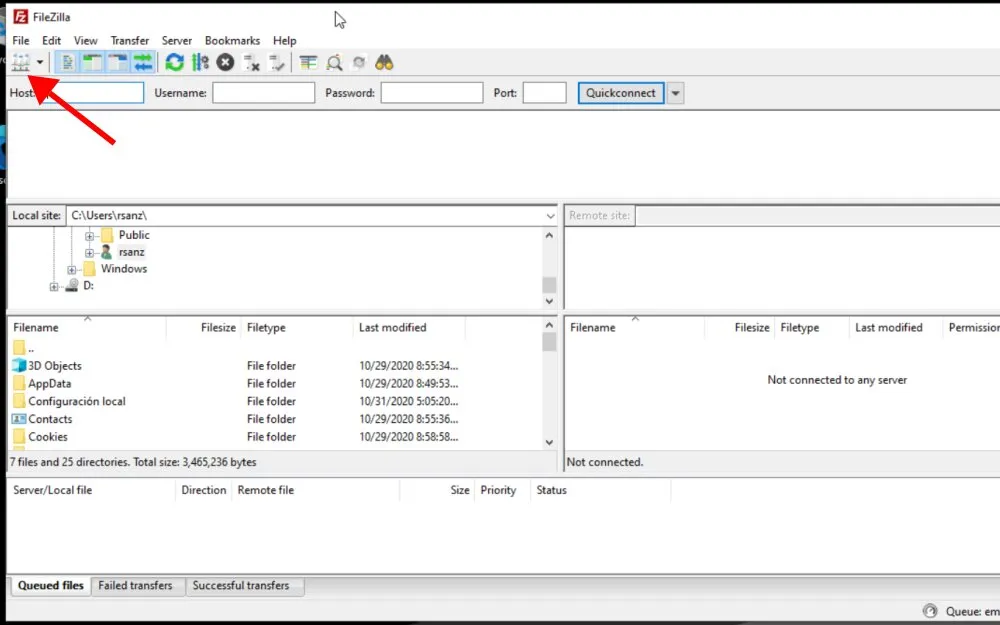
- Click on “New site” and type a name for the connection.
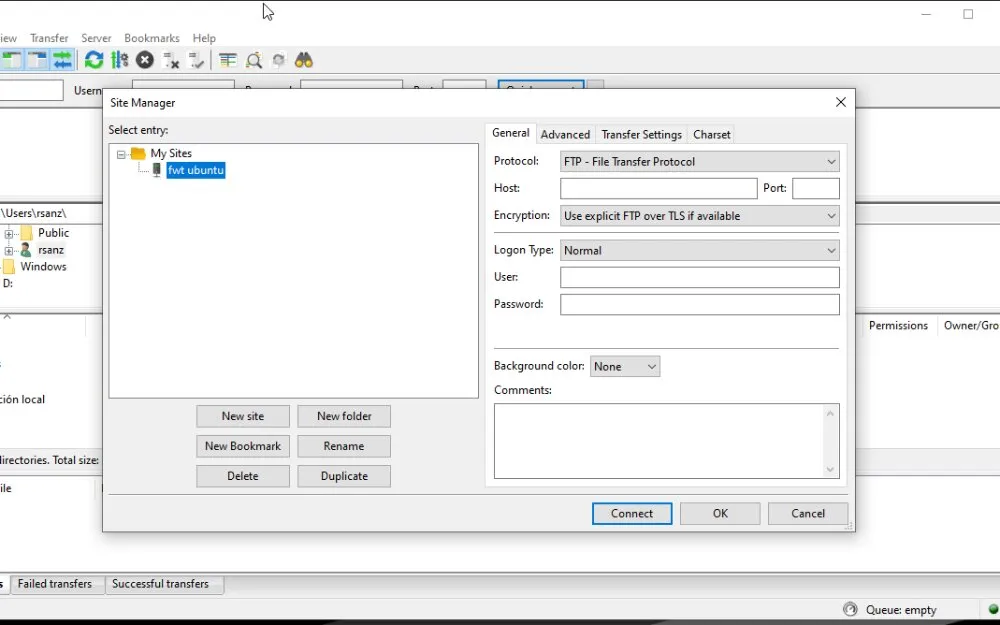
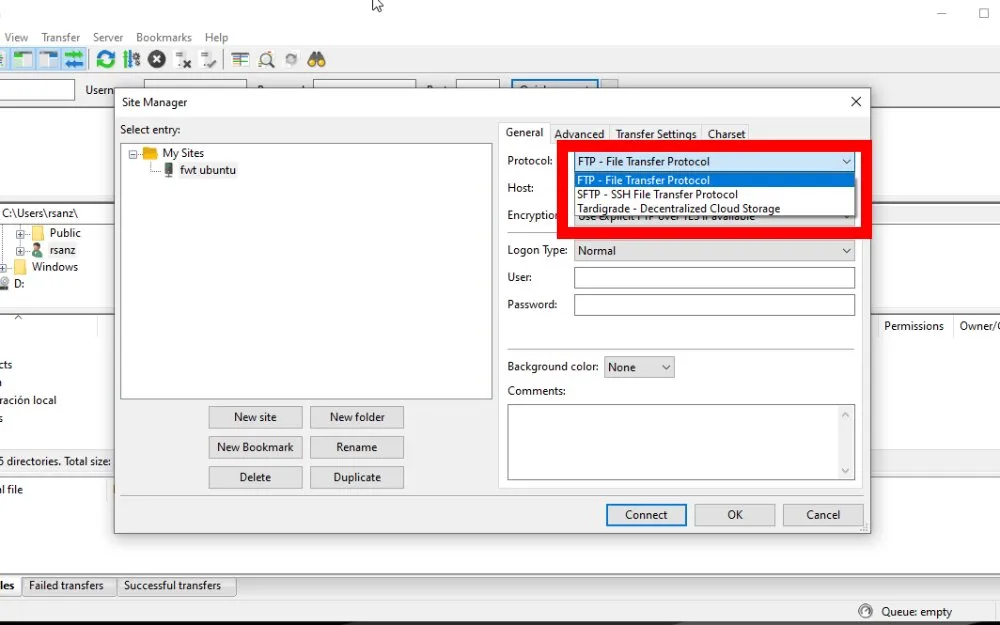
- In “Protocol” select “SFTP - SSH File Transfer Protocol”.
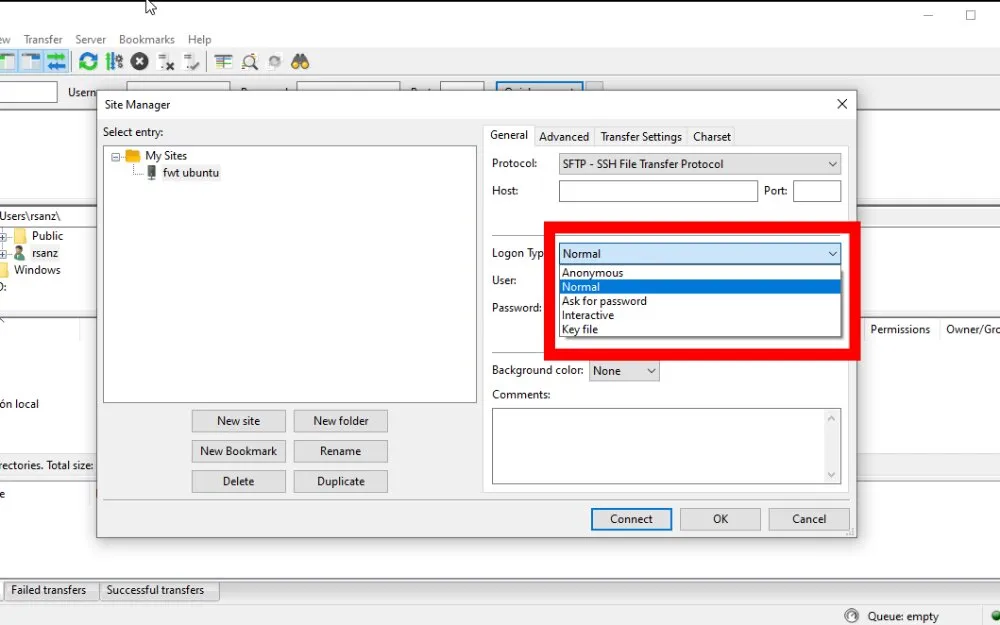
- Type the public IP or DNS on “Host”.
- Select “Key File” in “Logon Type”. (If you use a password to connect to the server, type the username and password and skip steps 6 and 7).
- Type the username.
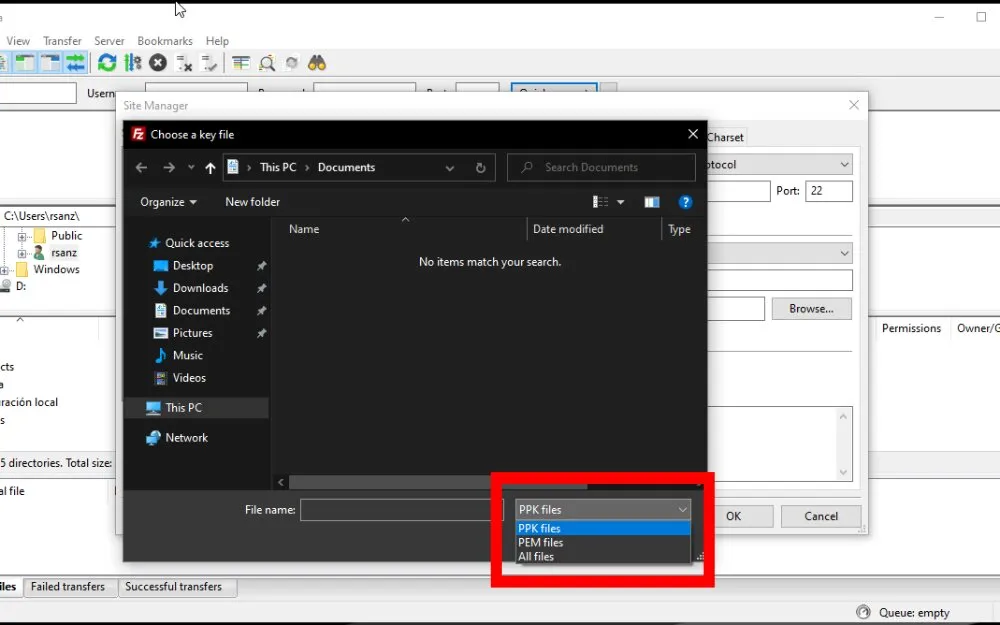
- Click “Browse” to select the private key file. In the pop-up window, select your private key format (PEM or PPK) at the bottom-right corner and then the private key file.
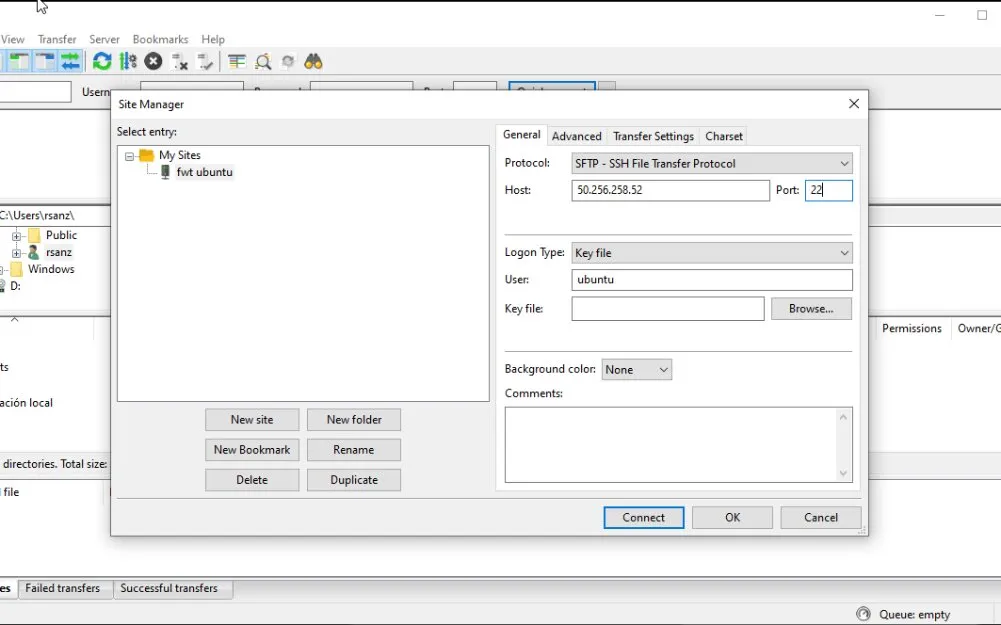
- Finally, click “Connect”.


SFTP (command-line)
You can use the sftp command to open a secure FTP connection.
sftp <username>@<server>
# or
sftp -i <private key path> <username>@<server>
Then, it will show a prompt. These are some commands you can use:
ls [directory]: list the content of a remote directory.cd <directory>: change the remote working directory.mkdir <directory>: create a remote directory.put <localfile> [remotefile]: transfer a file to the remote machine. Add-Rto recursive transfer.get <remotefile> [localfile]: transfer a file from a remote machine. Add-Rto recursive transfer.quit: close the connection and exit.
SCP
SCP command line tool is usually installed with ssh in Linux distros.
Type these commands on your local device:
- Transfer files from server to local computer:
scp -i <privatekey> <remote-user>@<remote-ip>:<remote-file> </local/path/>- Add
-rto copy recursively. -P <port>to use a port different than 22.
- Transfer files to server:
scp <local-file> -i <privatekey> <remote-user>@<remote-ip>:<remote-path>rsync
With rsync you can do incremental file transfer between two devices within a local network or between different networks. More info on my post Backup methods (IV): rsync.
Web Server (only for download)
- Type this in your VPS (in your working directory):
sudo python3 -m http.server 80
# you do not need "sudo" if port >=1024- Go to
http//<SERVER-PUBLIC-IP>
Don’t have a server yet? Here are some free VPS options and free trials you can use to follow this tutorial.
If you have any suggestion, feel free to contact me via social media or email.
Latest tutorials and articles:





Featured content: